
Tutorial cara install Peterodactyl dan wings secara otomatis
Persyaratan Server (Rekomendasi 2026)
Minimum: 4 vCPU | 8 GB RAM | 100 GB NVMe
Rekomendasi: 8 vCPU | 16 GB RAM +
OS: Ubuntu 22.04 / 24.04 LTS atau Debian 12
Wajib: Domain + A record sudah mengarah ke IP server (Cloudflare Proxy = OFF saat install)
Langkah 1: Persiapan Awal (5 menit)
bashsudo su - apt update && apt upgrade -y apt install curl -y timedatectl set-timezone Asia/Jakarta
Langkah 2: Jalankan Installer Otomatis
bashbash <(curl -s https://pterodactyl-installer.se)
Langkah 3: Ikuti Prompt Installer
- Pilih 2 → Install both the panel and Wings
- FQDN → code
panel.domainkamu.com - Database → tekan Enter atau buat password kuat
- Timezone → code
Asia/Jakarta - Email admin & buat akun admin pertama (password kuat!)
- UFW Firewall → code
y - Let’s Encrypt SSL → code
y - Telemetry → code
no
Tunggu 5-12 menit.
Langkah 4: Cek Service
bashsystemctl status nginx mariadb redis-server wings
Semua harus active (running) ✅
Langkah 5: Akses Panel
Buka: https://panel.domainkamu.com
Login dengan akun admin.
Langkah 6: Setup Node & Configuration Wings
- Admin Area → Nodes → klik nama Node
About the Author
rizz
Comments (0)
No comments yet. Be the first to comment!
Related Posts

Apa Itu DDoS dan Mengapa Serangan Ini Berbahaya?
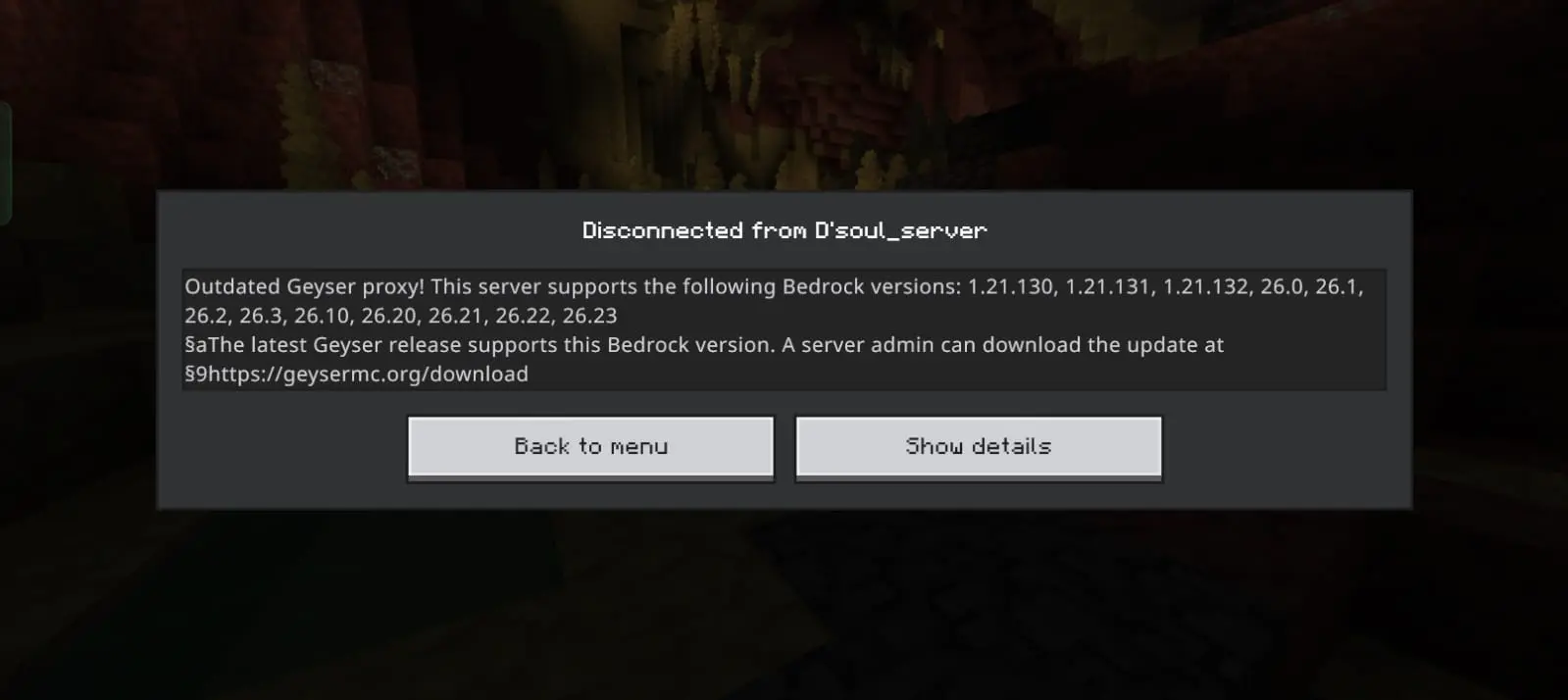
Cara mengatasi geyser error Oudated Geyser proxy!
Player Bedrock kesulitan join karena pesan 'Outdated Server'? Jangan panik! Geyser Anda mungkin perlu di-update. Simak panduan simpel langkah demi langkah untuk memperbarui Geyser ke versi terbaru dan membuat server Anda kembali up-to-date tanpa ribet.
Top 5 Plugin Keamanan Terbaik untuk Server Minecraft (Wajib Pakai!)
Keamanan adalah salah satu hal paling penting dalam mengelola server Minecraft. Tanpa sistem keamanan yang baik, server kamu bisa terkena serangan bot, griefing, hingga pencurian akun pemain.